Adding Tools in Perfect10 Pro
This guide explains how to add Internal and External Tools in Perfect10 Pro so they can be used by your system and AI Agents.
Prerequisites
- You are logged in to your Perfect10 Pro account.
- You have administrative access to the Tools menu.
- For External Tools: valid credentials or OAuth access for the third-party service (e.g., Google, GitHub, Slack).
- For Internal Tools: database connection details (host, port, username, password).
Tools Page Link
Access the Tools page here:
https://perfect10.id/tools
Steps to Add Tools
1. Open the Tools Page
- From the sidebar menu, go to Tools.
- Choose Internal or External depending on the type of tool you want to add.
2. Add Internal Tools
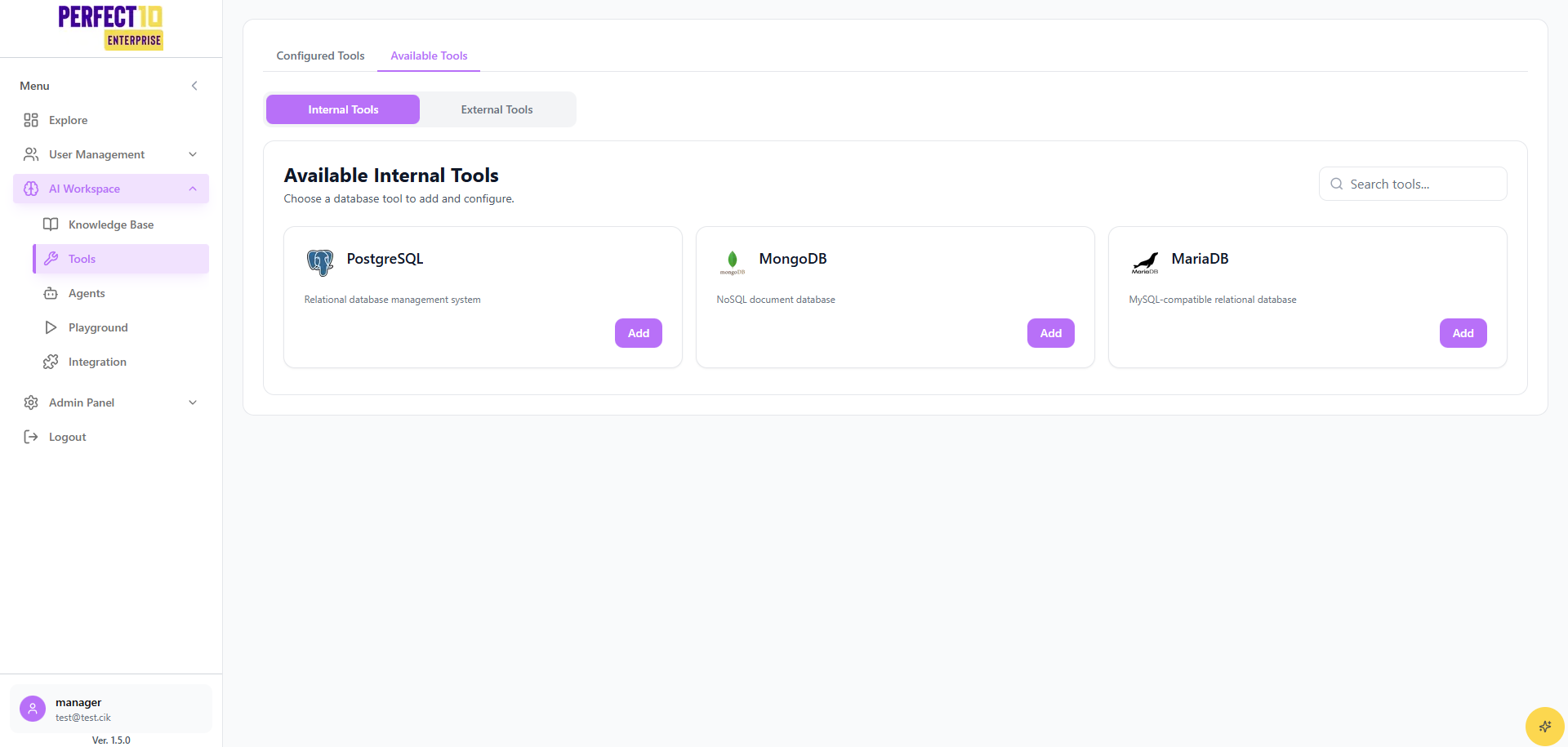
- In the Internal Tools tab, select a database (e.g., PostgreSQL, MongoDB, MariaDB).
- Click Add Tool.
- Enter connection details:
- Host
- Port
- Database Name
- Username
- Password
- Click Save.
- The tool will appear under Configured Tools.
3. Add External Tools
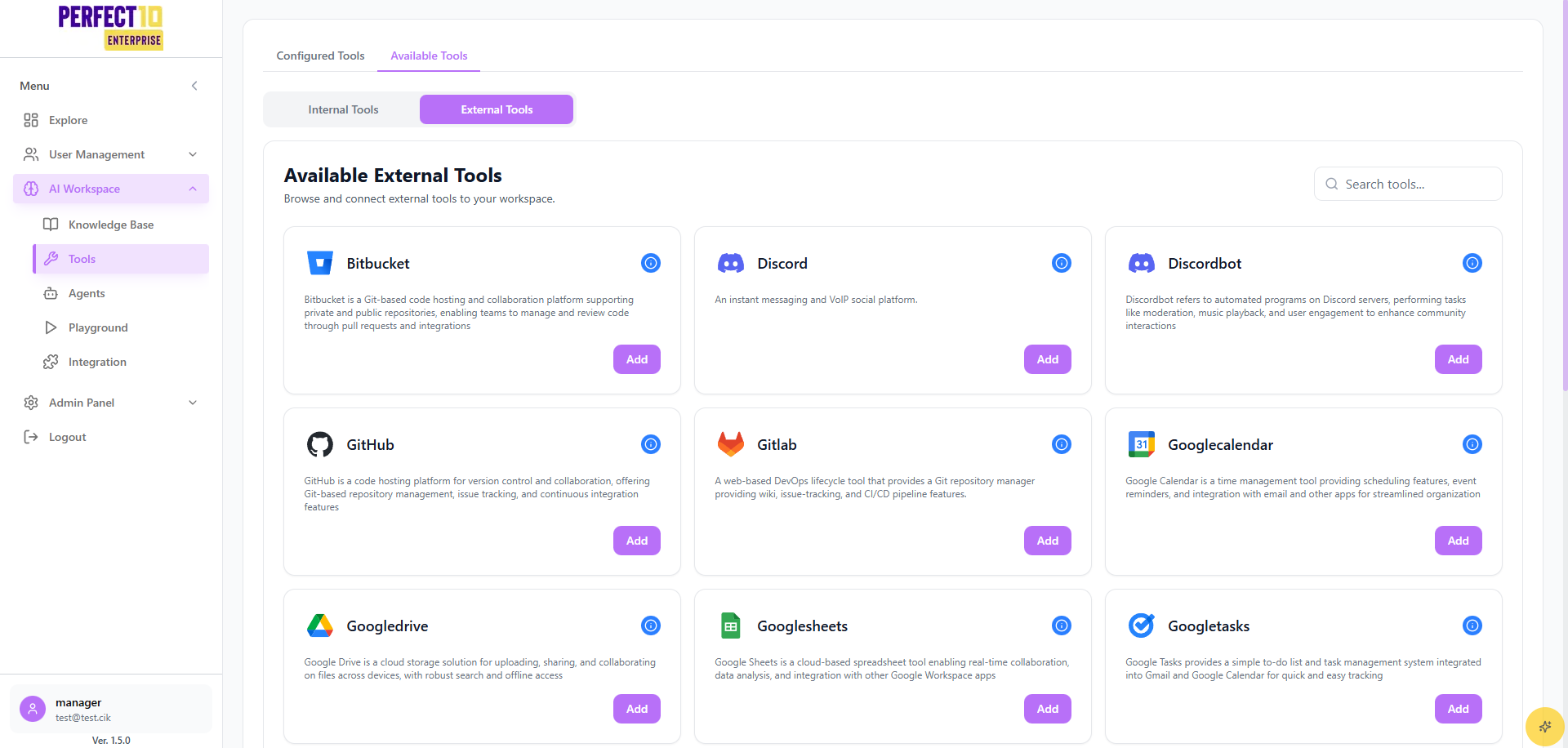
- In the External Tools tab, search for the tool you want (e.g., Google Drive, GitHub, Slack, Trello).
- Click Connect.
- Authenticate via OAuth login or API Key (depending on the tool).
- Once verified, the tool will appear in Configured Tools with a Connected status.
Usage Tips
- Use Search Tools to quickly find the integration you need.
- Always verify credentials in a staging environment before connecting to production.
- For External Tools, prefer OAuth login over API keys for better security.
- Review Configured Tools regularly to remove unused integrations.
Next Steps
After adding tools:
- Link them to your AI Agents where needed.
- Monitor activity in Tools → Usage.
- Explore automation features by combining multiple tools in workflows.