Manage Invitation Codes
Overview
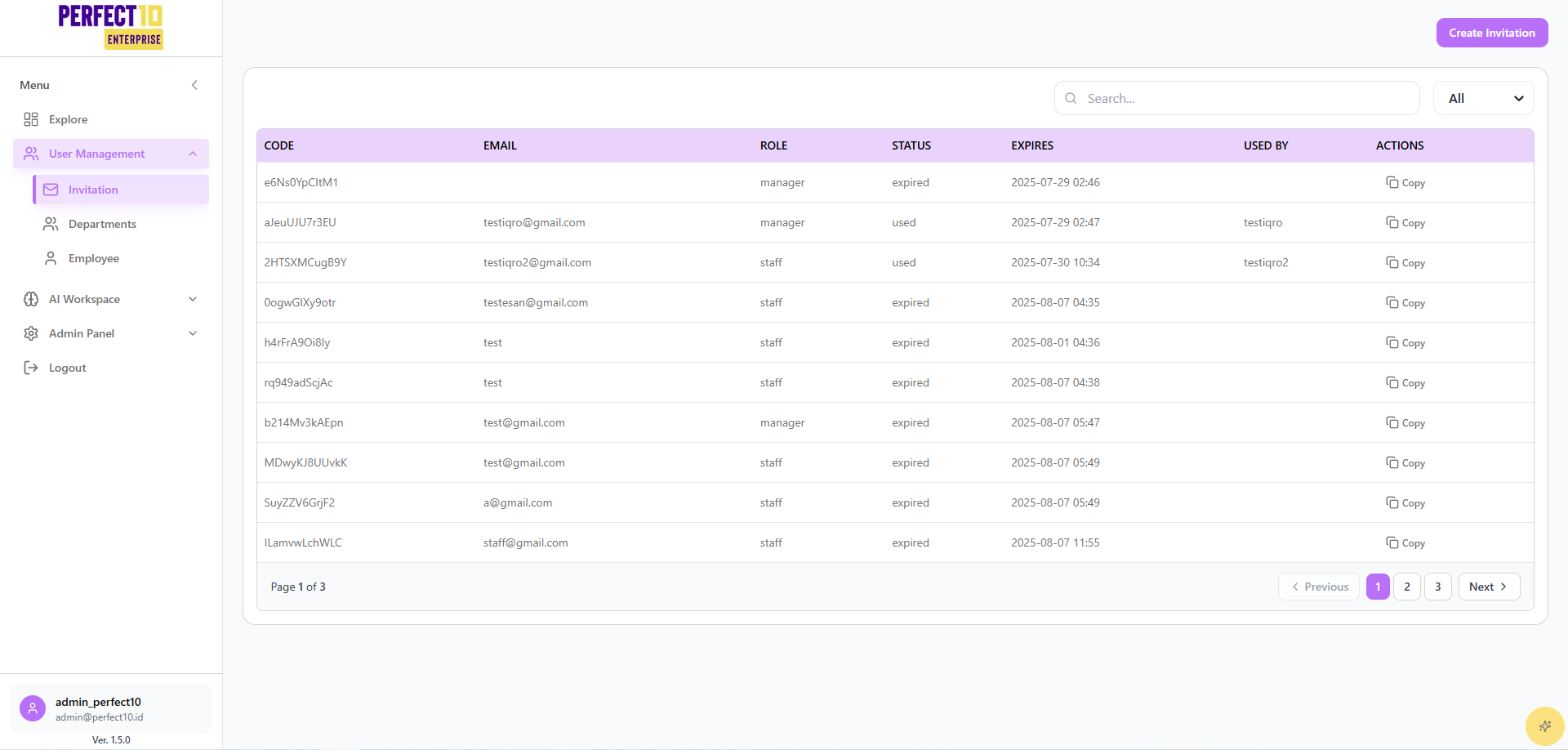
The Invitation Management module in Perfect10 Pro - Enterprise Platform allows administrators to securely generate, monitor, and manage invitation codes used for onboarding new employees.
This ensures that only authorized individuals can join the platform with predefined roles and permissions.
Accessible via the Explore → User Management → Invitation menu, the interface provides full visibility into all generated invitation codes, their statuses, and usage history.
Platform Layout
Header Information
| Element | Description |
|---|---|
| Logo | Displays the Perfect10 Pro logo in the top-left corner. |
| Menu | Contains navigation sections including Explore, AI Workspace, and Admin Panel. |
| User Info | Displayed at the bottom-left: admin_enterprise ([email protected]) |
| Version | Platform version: 1.5.0 |
Menu Structure
Explore
-
User Management
Manage user accounts, roles, and permissions. -
Invitation
Create and manage invitation codes for new users. -
Departments
Organize users into structured departments or business units. -
Employee
Manage staff profiles, job roles, and activity logs.
AI Workspace
Access AI tools, knowledge repositories, and chatbot agents.
Admin Panel
Configure company profile settings, organizational hierarchy, and usage analytics.
Logout
Securely sign out of the administrative session.
Invitation Management Dashboard
Interface Overview
The Invitation Dashboard displays all active, used, and expired invitation codes.
It includes options to Create Invitations, Search existing entries, and Filter by status.
Table Columns
| Column | Description |
|---|---|
| Code | System-generated unique invitation code. |
| The registered email address for the invitee (if specified). | |
| Role | Assigned role for the user (e.g., Manager or Staff). |
| Status | Current code status: Active, Used, or Expired. |
| Expires | Date and time when the invitation code becomes invalid. |
| Used By | Username of the person who redeemed the code. |
| Actions | Available options such as Copy or Revoke. |
Example Table (Sanitized Data)
| Code | Role | Status | Expires | Used By | Actions | |
|---|---|---|---|---|---|---|
| X1A2B3C4D5E6 | – | Manager | Expired | 2025-07-29 02:46 | – | Copy |
| Y7Z8P9Q1R2S3 | [email protected] | Manager | Used | 2025-07-29 02:47 | user01 | Copy |
| M9N8O7L6K5J4 | [email protected] | Staff | Used | 2025-07-30 10:34 | user02 | Copy |
| T6R5E4W3Q2P1 | [email protected] | Staff | Expired | 2025-08-07 04:35 | – | Copy |
| H8G7F6D5S4A3 | [email protected] | Staff | Expired | 2025-08-01 04:36 | – | Copy |
| A1B2C3D4E5F6 | [email protected] | Manager | Expired | 2025-08-07 05:47 | – | Copy |
| P9O8I7U6Y5T4 | [email protected] | Staff | Expired | 2025-08-07 05:49 | – | Copy |
Page 1 of 3 — Navigation: Previous | 1 | 2 | 3 | Next
Creating a New Invitation
- Click Create Invitation at the top of the page.
- Fill in the required fields:
- Email Address (optional)
- Role – Select between Manager or Staff
- Department (optional)
- Expiration Date (optional)
- Click Generate to create the code.
The generated invitation will appear instantly in the table for use.
Managing Invitations
Searching
Use the search bar to locate invitations by email, code, or role.
Filtering
Apply filters (All, Active, Used, Expired) to refine the displayed list.
Copying
Click Copy under the Actions column to securely copy an invitation code.
Monitoring
Track which invitations have been redeemed using the Used By field.
Security Recommendations
- Set Expiration Dates: Always assign a validity period to invitation codes.
- Restrict by Email: Bind invitations to specific email addresses where possible.
- Assign Least Privilege: Grant the lowest required role for each new user.
- Distribute Securely: Share codes through encrypted channels or internal communication tools.
Note: Expired or used codes cannot be reused.
Tip: Clean up old invitation codes periodically to maintain a secure and organized system.