Manage Departments
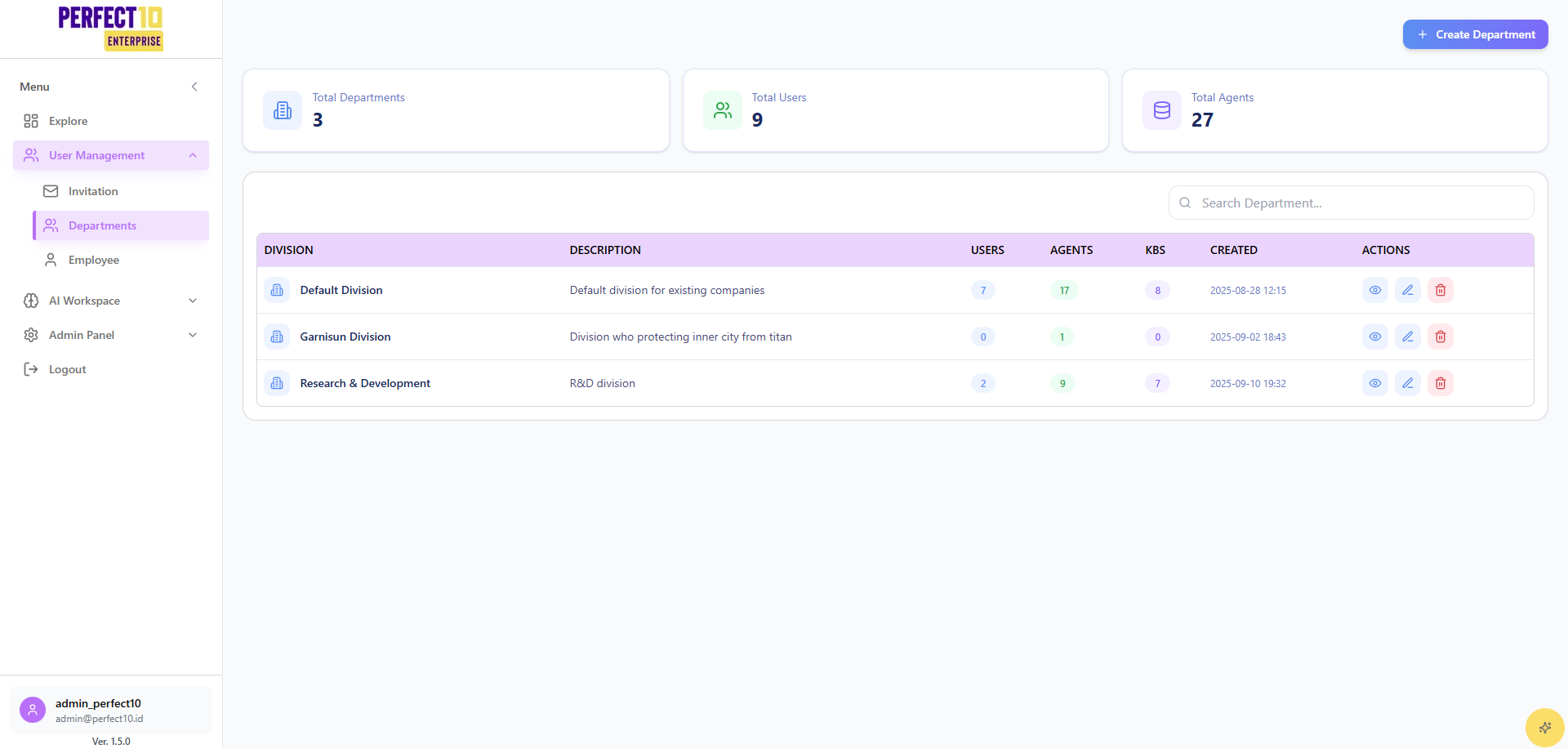
Overview
The Departments module in the Perfect10 Pro - Enterprise Platform allows administrators to organize employees, chatbot agents, and knowledge bases (KBs) into structured divisions.
This helps maintain clarity in management, reporting, and role-based access control within large organizations.
Accessible via Explore → User Management → Departments, this feature provides a centralized view of all divisions, along with their associated users, agents, and knowledge resources.
Platform Layout
Header Information
| Element | Description |
|---|---|
| Logo | Displays the Perfect10 Pro logo. |
| Menu | Provides navigation options: Explore, AI Workspace, Admin Panel, Logout. |
| User Info | Shown at the bottom-left: admin_enterprise ([email protected]) |
| Version | Platform version: 1.5.0 |
Menu Structure
Explore
- User Management – Manage roles, invitations, and employee profiles.
- Invitation – Create and track invitation codes for new users.
- Departments – View, create, and manage organizational divisions.
- Employee – Manage staff details and system activity.
AI Workspace
Access tools, agents, and knowledge resources connected to each department.
Admin Panel
Configure company-level profiles, structure, and usage analytics.
Logout
Safely end your admin session.
Departments Dashboard
Interface Overview
The Departments Dashboard provides administrators with real-time insights into organizational structure and performance.
- Create Department – Add a new department to the system.
- Search Department – Quickly locate departments by name or description.
- Summary Metrics – Display key operational statistics:
- Total Departments: 3
- Total Users: 9
- Total Agents: 27
Department Table Overview
| Column | Description |
|---|---|
| Division | The name of the department or division. |
| Description | A brief overview of the department’s function. |
| Users | Number of users assigned to the division. |
| Agents | Number of chatbot agents under this division. |
| KBs | Number of knowledge bases linked to the division. |
| Created | Timestamp indicating when the department was added. |
| Actions | Operations such as View, Edit, or Delete. |
Example Department List (Sanitized)
| Division | Description | Users | Agents | KBs | Created |
|---|---|---|---|---|---|
| Default Division | Default division for initial system setup | 7 | 17 | 8 | 2025-08-28 12:15 |
| Operations Division | Manages client service and logistics | 0 | 1 | 0 | 2025-09-02 18:43 |
| R&D Division | Handles research and AI model development | 2 | 9 | 7 | 2025-09-10 19:32 |
Creating a New Department
- Click Create Department.
- Enter the following details:
- Division Name – The department’s title (e.g., Sales, Engineering).
- Description – Short summary of its purpose or function.
- Click Save to confirm.
- The new department will appear immediately in the department table.
Managing Departments
Searching
Use the Search Department field to find specific divisions quickly.
Viewing Details
Click on a department row to view its users, agents, and knowledge bases.
Editing
Modify a department’s name or description via the Edit action.
Deleting
Remove obsolete or merged divisions to keep organizational data clean.
Best Practices
- Keep divisions clear and distinct to prevent overlap between teams.
- Assign appropriate roles within each department for access control.
- Regularly review usage statistics to balance agent and user distribution.
- Archive inactive divisions to maintain a clean organizational structure.
Note: Changes in department configuration may affect access to linked agents or KBs.
Tip: Use descriptive department names to make analytics and reports more intuitive.