Manage Employees
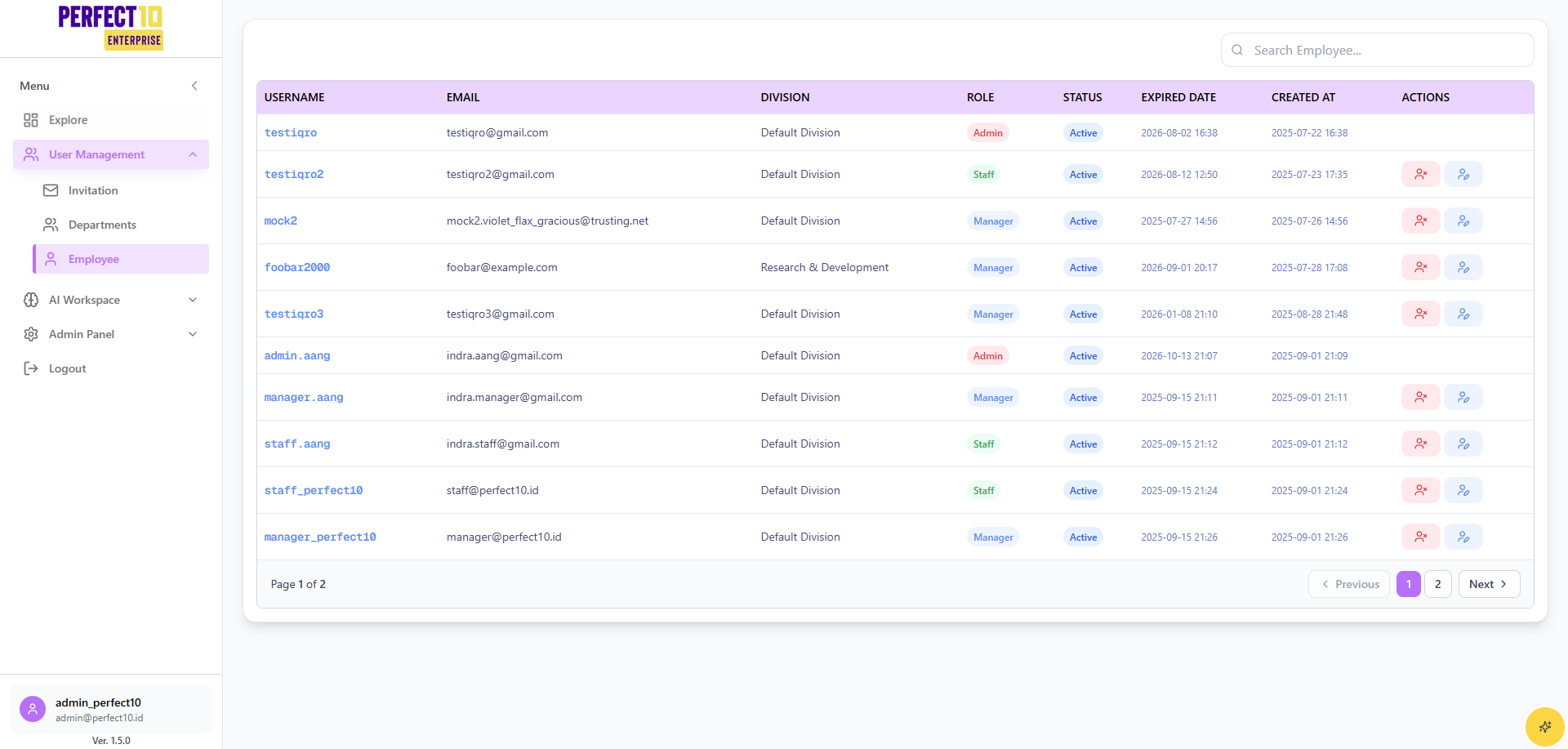
Overview
The Employee Management module in Perfect10 Pro - Enterprise Platform enables administrators to manage all user accounts within the organization.
It provides full visibility into user details, roles, status, division assignments, and activity periods — ensuring secure and organized workforce management.
Accessible via Explore → User Management → Employee, this interface consolidates employee data across all divisions and roles.
Platform Layout
Header Information
| Element | Description |
|---|---|
| Logo | Displays the Perfect10 Pro company logo. |
| Menu | Includes navigation options such as Explore, AI Workspace, Admin Panel, and Logout. |
| User Info | Shown at the bottom-left: admin_enterprise ([email protected]) |
| Version | Platform version: 1.5.0 |
Menu Structure
Explore
- User Management – Access and manage user-related configurations.
- Invitation – Manage invitation codes and onboarding processes.
- Departments – Organize employees under structured divisions.
- Employee – Manage all staff accounts and system roles.
AI Workspace
Access AI tools, agents, and related administrative features.
Admin Panel
Configure company settings, organizational hierarchy, and usage monitoring.
Logout
Securely sign out from the admin session.
Employee Dashboard
Search and Overview
Use the Search Employee field to quickly locate employees by username or email.
The dashboard displays all active users, their assigned roles, divisions, and account status.
Table Columns
| Column | Description |
|---|---|
| Username | The system-registered username of the employee. |
| The associated work email address. | |
| Division | The department or business unit the employee belongs to. |
| Role | The user’s assigned role (Admin, Manager, or Staff). |
| Status | Indicates whether the account is Active or Suspended. |
| Expired Date | The account’s expiration or renewal date. |
| Created At | The date and time when the employee account was created. |
| Actions | Available actions such as Edit, View, or Deactivate. |
Example Employee List (Sanitized)
| Username | Division | Role | Status | Expired Date | Created At | |
|---|---|---|---|---|---|---|
| user_admin | [email protected] | Default Division | Admin | Active | 2026-08-02 16:38 | 2025-07-22 16:38 |
| user_staff01 | [email protected] | Default Division | Staff | Active | 2026-08-12 12:50 | 2025-07-23 17:35 |
| user_manager01 | [email protected] | Default Division | Manager | Active | 2025-07-27 14:56 | 2025-07-26 14:56 |
| user_rd01 | [email protected] | R&D Division | Manager | Active | 2026-09-01 20:17 | 2025-07-28 17:08 |
| user_manager02 | [email protected] | Default Division | Manager | Active | 2026-01-08 21:10 | 2025-08-28 21:48 |
| user_admin02 | [email protected] | Default Division | Admin | Active | 2026-10-13 21:07 | 2025-09-01 21:09 |
| user_manager03 | [email protected] | Default Division | Manager | Active | 2025-09-15 21:11 | 2025-09-01 21:11 |
| user_staff02 | [email protected] | Default Division | Staff | Active | 2025-09-15 21:12 | 2025-09-01 21:12 |
| user_staff03 | [email protected] | Default Division | Staff | Active | 2025-09-15 21:24 | 2025-09-01 21:24 |
| user_manager04 | [email protected] | Default Division | Manager | Active | 2025-09-15 21:26 | 2025-09-01 21:26 |
Page 1 of 2 — Navigation: Previous | 1 | 2 | Next
Managing Employees
Viewing Employee Details
Click on an employee row to view detailed information such as department, role, account activity, and access permissions.
Editing Employee Information
- Select an employee record.
- Update their division, role, or email if necessary.
- Save changes to apply updates instantly.
Role Management
Assign the appropriate system role:
- Admin – Full platform access.
- Manager – Department-level management privileges.
- Staff – Standard user with limited permissions.
Deactivation or Suspension
Use the Deactivate action for employees who no longer require system access.
Suspended accounts can be reactivated later if needed.
Security & Best Practices
- Regular Audits: Periodically review active users to remove outdated accounts.
- Access Control: Ensure employees have only the permissions required for their role.
- Expiration Dates: Use account expiration to automatically limit temporary access.
- Data Privacy: Avoid sharing employee data outside authorized channels.
Note: Role changes take effect immediately and may alter access to AI agents and workspace resources.
Tip: Keep employee information synchronized with HR systems to ensure accuracy across all departments.