Employees
Overview
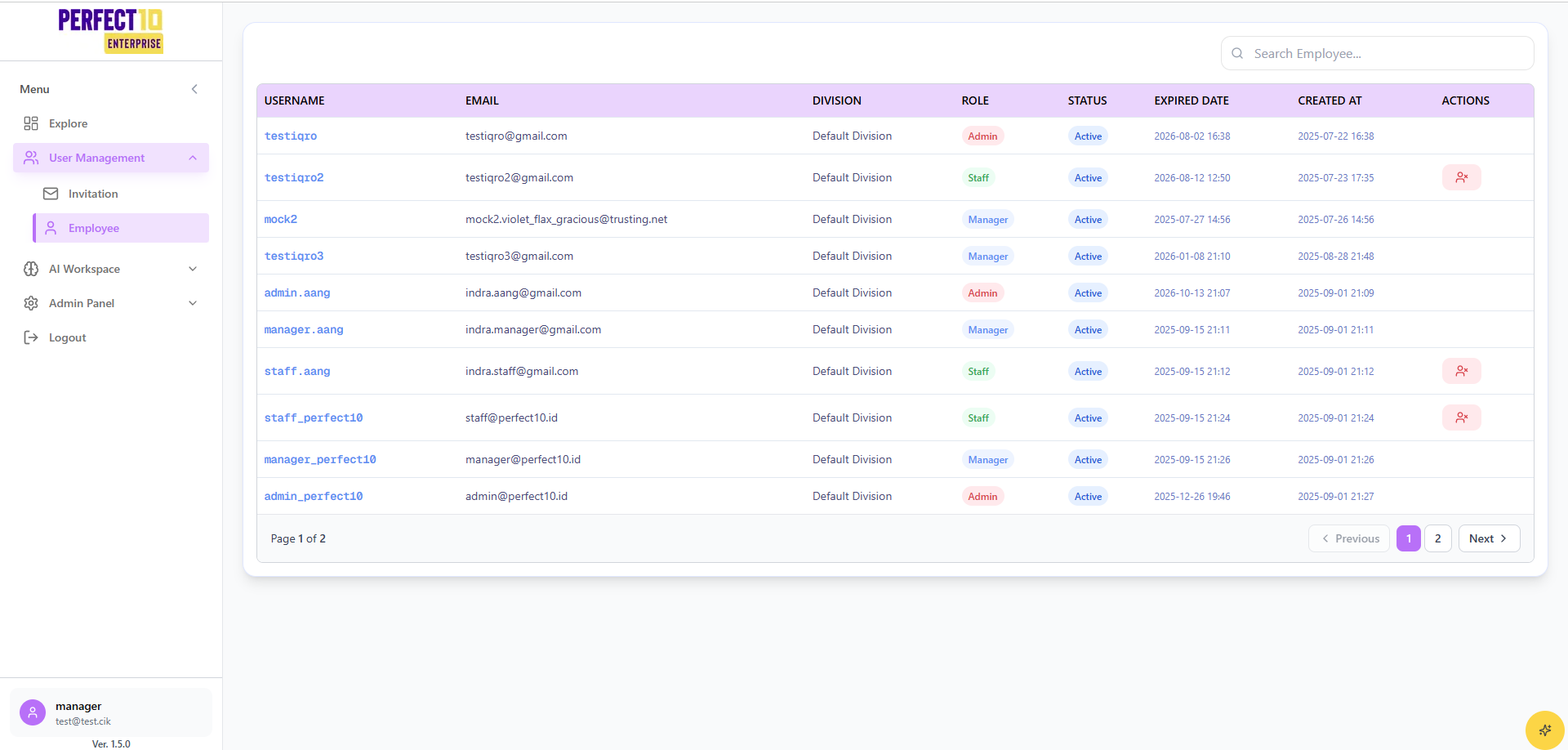
The Employees view gives managers visibility into staff accounts within their division. It mirrors the Admin experience but only exposes controls appropriate for managers.
Accessing Employees
- Open the Explore sidebar.
- Expand User Management and select Employees.
- The table lists all staff assigned to your division.
Table Columns
- Username - Unique identifier for each staff account.
- Email - Work email associated with the user.
- Division - The division the staff member belongs to (read-only for managers).
- Role - User role; managers can only manage staff roles.
- Status - Active or Inactive indicator.
- Joined - Date the account was created.
- Actions - Toggle to activate or deactivate staff access.
Allowed Actions
- Search for staff using the Search staff... field.
- Filter by status to find inactive employees quickly.
- Activate or deactivate staff accounts when team membership changes.
Restricted Actions
- Managers cannot edit admin or other manager profiles.
- Role, division, and email changes require Administrator support.
- Cross-division user management is not available to managers.
Managing Staff Status
- Locate the staff account in the table.
- Use the toggle in the Actions column to activate or deactivate the user.
- Confirm the change; updates apply immediately.
Status changes are limited to staff accounts and should follow division HR processes.
Best Practices
- Review staff access weekly to ensure only active employees retain permissions.
- Coordinate with Administrators for role updates or cross-division transfers.
- Document onboarding and offboarding steps so changes are auditable.
Tip: Pair employee updates with Invitation code tracking to ensure new hires receive credentials promptly.