Projects Workspace
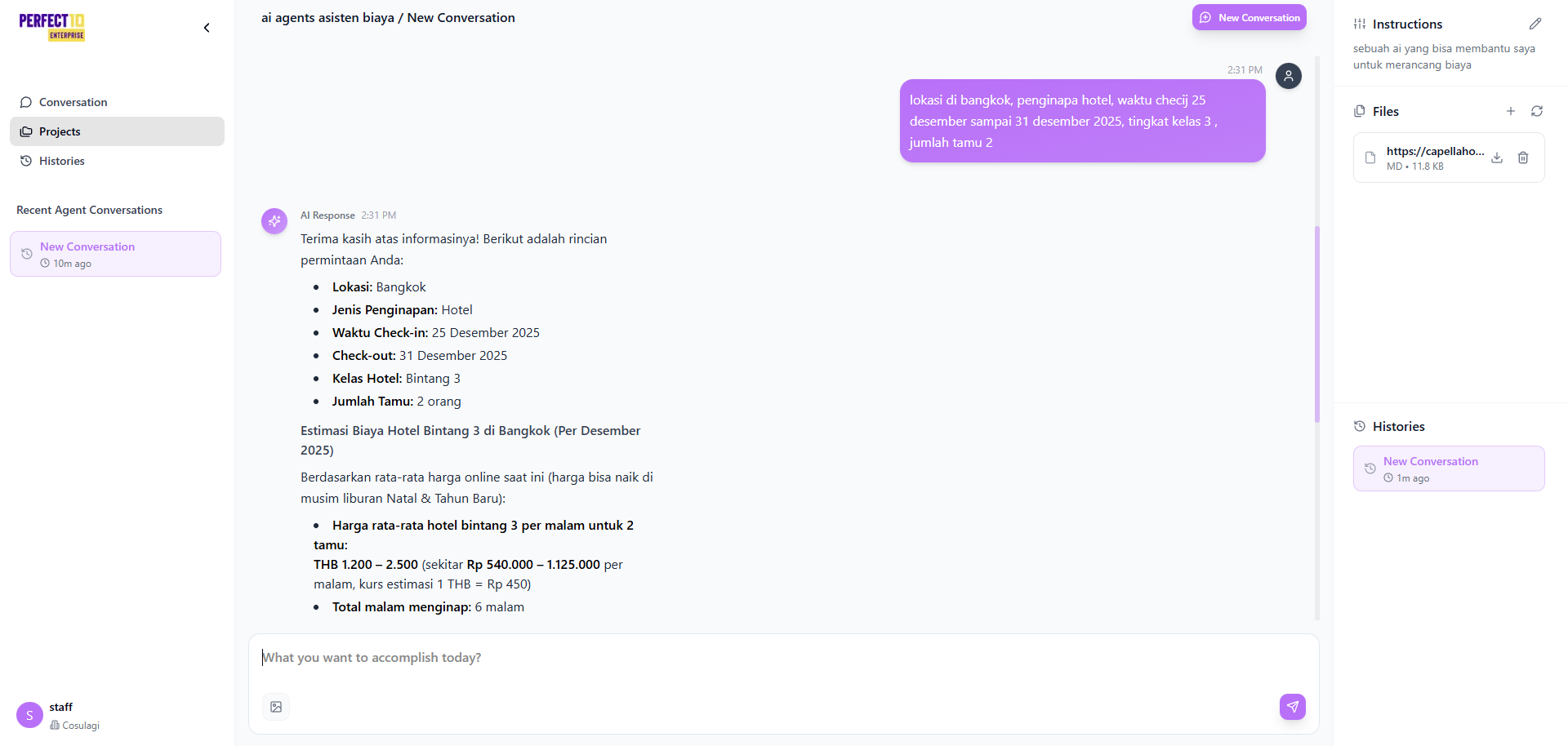
Overview
The Projects Workspace allows staff members to create specialized environments where AI agents can deliver focused, context-aware, and data-driven responses.
By uploading relevant files or defining clear instructions, you enable the AI to reference your organization’s data directly—ensuring more accurate, consistent, and customized outputs.
Getting Started
Creating a Project
- Navigate to the Projects section from the sidebar menu.
- Click Create New Project.
- Enter a Project Name and a short Description.
- Upload relevant files or provide custom instructions to guide the AI’s behavior.
Uploading Files
- Supported Formats: PDF, DOC, DOCX, PPTX, TXT, CSV, XLSX, XLS, MD, MARKDOWN, and image formats (PNG, JPG, JPEG, GIF, BMP, TIF, TIFF, WebP).
- Maximum File Size: 90 MB per file.
- Upload Options:
- Drag and drop files directly into the upload area.
- Browse and select files from your device.
- Import data from an external URL.
- Upload folders (subfolder files are counted but not uploaded).
Enhancing AI Interactions
Using Custom Instructions
Define specific prompts or operational guidance to tailor how the AI interacts with your uploaded data.
Examples:
- “Use the uploaded sales report to analyze quarterly performance.”
- “Reference the technical manual when answering product support questions.”
File Integration
Once uploaded, your files become part of the AI’s reference base, allowing it to:
- Extract and analyze data from spreadsheets or reports.
- Reference procedures or definitions from documentation.
- Provide insights based on uploaded datasets or materials.
Practical Applications
Customer Service
Upload product catalogs, FAQs, or policy documents to enable the AI to respond accurately to customer queries.
Data Analysis
Provide structured files (CSV or Excel) for the AI to generate insights, trends, and summaries automatically.
Research Assistance
Upload articles or research papers and instruct the AI to summarize findings, compare results, or extract key data points.
Best Practices
- Ensure File Quality – Use well-structured and readable documents for better AI comprehension.
- Provide Clear Instructions – Clearly specify how the AI should interpret or use your files.
- Keep Files Updated – Regularly update uploaded data to maintain accuracy.
- Organize Logically – Use descriptive file names and maintain a clear folder structure.
Limitations
- Large or complex files may require additional processing time.
- Advanced formatting (e.g., tables or graphics) may not be fully retained.
- Image-based PDFs have limited text extraction capability.
Note: The Projects feature transforms your AI agent from a general assistant into a specialized tool trained on your data, enabling precise and contextually relevant performance.
Tip: Start with a few well-organized files and clear instructions, then expand as you refine your workflow.